Simple output
CSV is widely accepted by spreadsheets, accounting tools, and internal workflows.
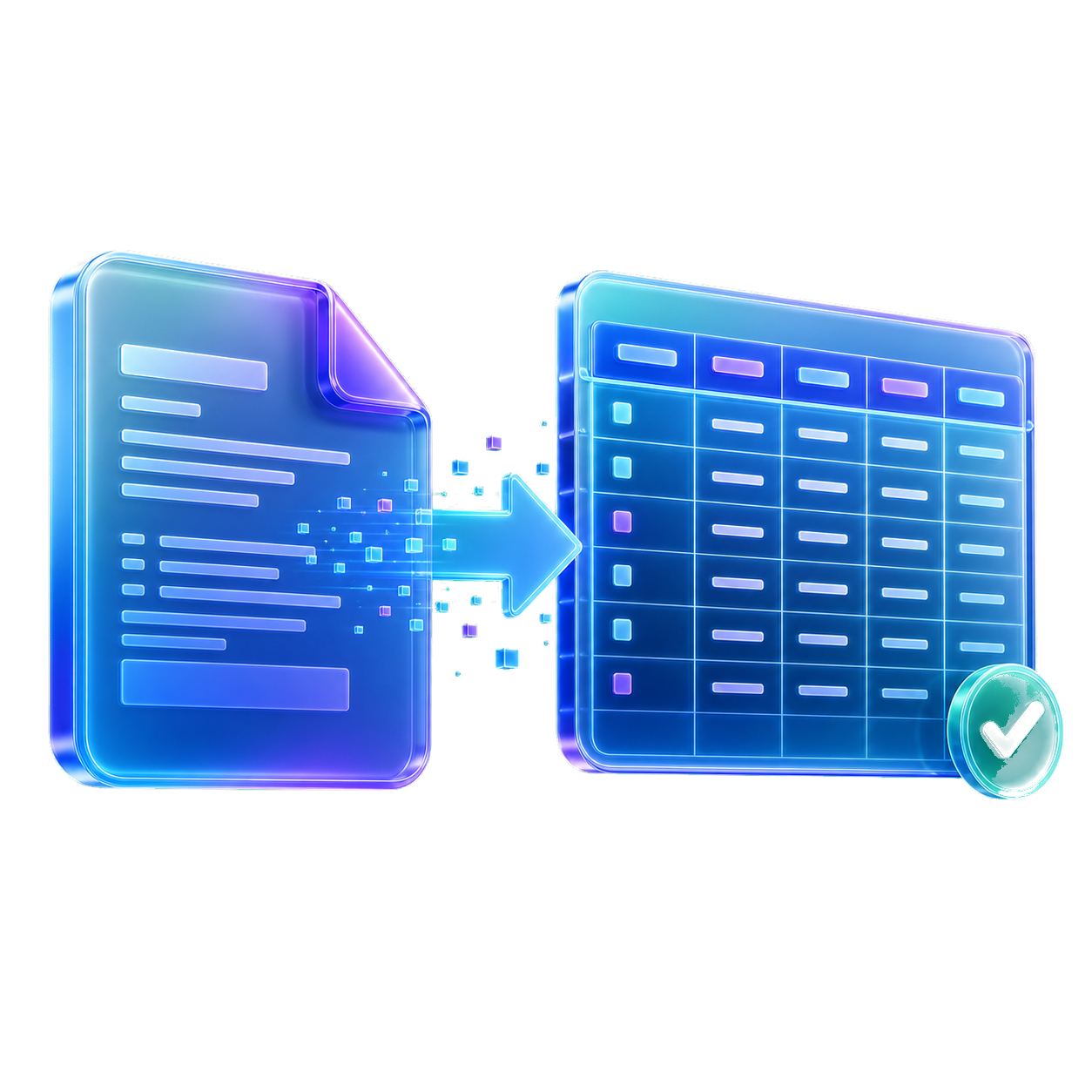
StatementForge converts PDF bank statements into CSV transaction files that are easier to sort, filter, and import than copied PDF text.

CSV is widely accepted by spreadsheets, accounting tools, and internal workflows.
Rows are parsed into columns instead of copied as broken PDF text.
You can review and edit rows before exporting.
Choose a text-based bank statement PDF, add a batch on bulk plans, or paste statement text when a PDF is locked.

StatementForge looks for dates, descriptions, withdrawals, deposits, net amounts, and balances.

Check and edit the transaction table before exporting, especially for unusual layouts or rows that need manual review.
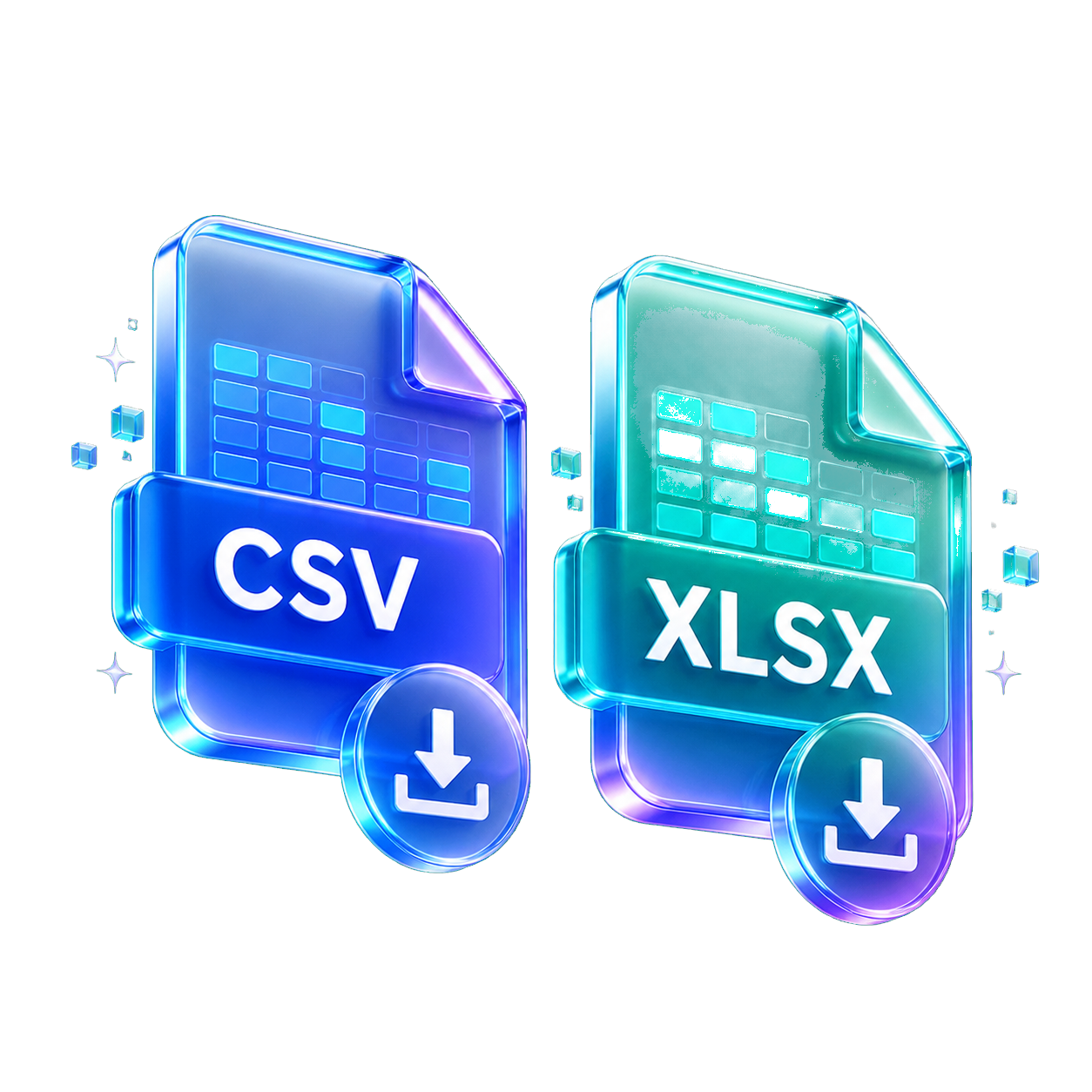
Download CSV, XLSX, JSON, QBO, OFX, or QIF depending on the workflow you need.
CSV is a simple plain-text table format accepted by many finance and spreadsheet tools.
Yes. Excel, Google Sheets, and most spreadsheet tools can open CSV files.
Bulk batches can export combined rows depending on plan limits.
No. StatementForge preserves and structures statement transaction data instead of guessing categories.
Start with the format, privacy setup, or statement type that matches the file in front of you. Each guide opens the same converter with a more focused workflow.
Use these when you want clean rows for spreadsheets, bookkeeping cleanup, or analysis.
Create reviewed files for accounting tools that accept QBO, QIF, OFX, or CSV imports.
Parse, review, analyze, and batch-convert sensitive statement files in the browser.
Start from a bank-specific or statement-review workflow, then convert the downloaded PDF.